If you’re using Obsidian Sync, you’ve probably noticed a frustrating limitation: your custom fonts on desktop don’t show up on your Obsidian mobile app. This happens because mobile operating systems block apps from accessing “local” font files for security reasons.
The solution? Embedding your font directly into a CSS snippet using Base64 encoding. This method is safe, permanent, and works seamlessly across all devices.
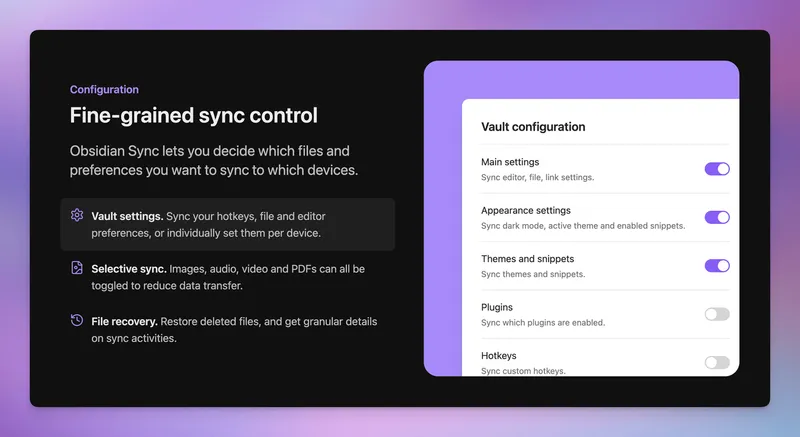
Obsidian Sync ( https://obsidian.md/sync)
Table of contents
Open Table of contents
The Problem
Standard CSS snippets usually “point” to a font file on your hard drive. Since your iPhone doesn’t have that file in its system folder, it defaults to system fonts like San Francisco or Arial.
The Solution: The Base64 Method
By converting your font into a Base64 text string, the font data lives inside the CSS file. Obsidian Sync moves the text file, and your phone reads the data as a font.
Step 1: Convert Your Font
You need to turn your .ttf or .otf font file into a web-friendly format.
- Go to Transfonter (https://transfonter.org/).
- Upload your font file.
- Settings:
- Family support: On
- Base64 encode: ON (This is the secret sauce).
- Formats: Check WOFF2 only (This keeps the file size small and fast for mobile).
- Click Convert and then Download.
Step 2: Create the Obsidian Snippet
- Open the downloaded zip file and open
stylesheet.css. - Copy the entire block of code (it will be a long string of random characters).
- In Obsidian (Desktop), go to Settings > Appearance.
- Scroll down to CSS snippets, click the folder icon, and create a new file named
custom-font.css. - Paste your code into that file.
- At the very bottom of the file, add this CSS rule to tell Obsidian to use the font:
:root {
  --font-text: "YourFontName";
  --font-interface: "YourFontName";
}
Make sure YourFontName matches the name in the code you pasted above.
Step 3: Activate and Sync
- In Obsidian Desktop, Refresh the snippet list and toggle your new snippet ON.
- Open Obsidian app on your iPhone.
- Once synced, go to Settings > Appearance > CSS snippets and toggle it ON there too.
- If it doesn’t change immediately, go to the Font settings in the app, tap Manage, and manually type in your font’s name.
Why This Works
This method is completely safe. CSS is a design language, not a programming language, so it cannot run arbitrary code or harm your device. By using WOFF2, we ensure the file is compressed and won’t slow down your mobile app.
The Base64 encoding technique embeds the entire font file as a text string within the CSS file itself. When Obsidian Sync transfers your CSS snippets, the font data travels with them. Your mobile device then decodes this Base64 string back into a usable font, bypassing the typical file system restrictions that prevent apps from accessing local font files.